
In Tableau, filters allow users to narrow down the data displayed in a worksheet or dashboard. Parameters, on the other hand, allow users to control values used in calculations and other Tableau features.
By combining parameters with calculated fields and filters, we can dynamically change the values available in a filter based on the parameter selection.
In this tutorial, we will create a parameter that allows users to select a customer segment. Based on the selection, the Customer filter will display only the customers belonging to that segment.
Scenario
Suppose a sales manager wants to analyze customers based on their sales performance.
The manager wants to switch between three categories:
High-Value: Customers with sales of $500 or more.
Low-Value: Customers with sales below $500.
All: All customers, regardless of sales.
When the manager changes the parameter selection, the Customer filter should automatically update to display the relevant customer names.
For example, selecting High-Value should display only customers whose sales are $500 or more. Selecting Low-Value should display customers whose sales are below $500.
We will accomplish this using a parameter, a calculated field, and a customer filter.
Step 1: Prepare the Dataset
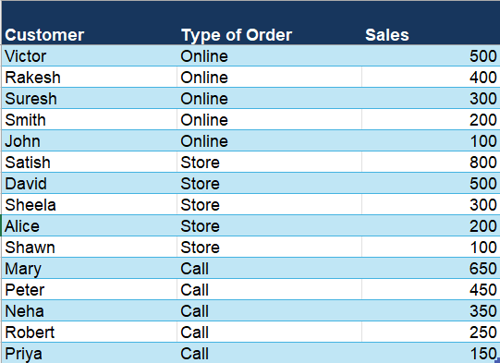
We will use a simple Excel dataset containing customer names, order types, and sales amounts.
The dataset has three columns:
Step 2: Connect the Dataset in Tableau
Open Tableau Desktop and connect to the Excel file using Connect > Microsoft Excel.
Select the worksheet containing the sales data and open a new Tableau worksheet.
Step 3: Create a Parameter
We will create a parameter that allows the user to select a customer segment.
In the Data pane, click the dropdown arrow.
Select Create Parameter of type string. Name it Customer Segment
Enter the settings as shown below:
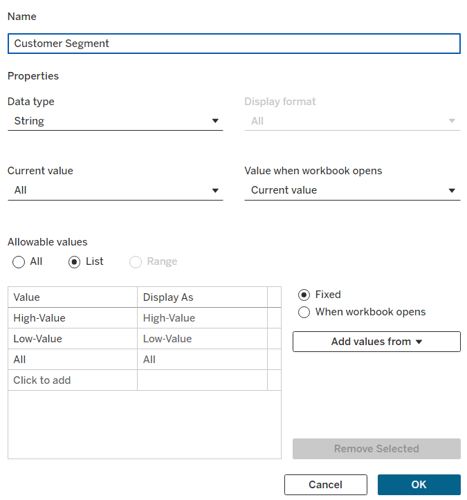
After creating the parameter, right-click on the parameter Customer Segment and select Show Parameter. This will display the parameter on the canvas.
Step 4: Create a Calculated Field
Next, we will create a calculated field that determines which customer records should be included based on the parameter selection.
Go to Analysis > Create Calculated Field.
Enter the name:
Customer Segment Filter
Use the following calculation:
CASE [Customer Segment]
WHEN "High-Value" THEN [Sales] >= 500
WHEN "Low-Value" THEN [Sales] < 500
WHEN "All" THEN TRUE
END
Click OK.
Step 5: Create a Sales Bar Chart
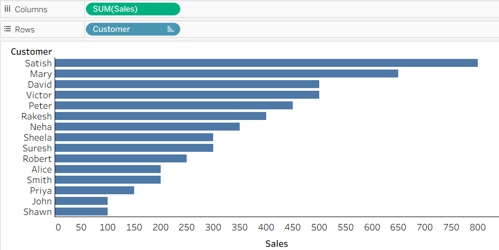
Now we will create a bar chart showing sales by customer.
Open a new worksheet or use the current worksheet.
From the data pane on the left, Drag Customer to Rows.
Drag Sales to Columns.
Ensure Sales is aggregated as SUM.
On the Marks card, select Bar.
Sort the customers in descending order of sales.
The worksheet should display a horizontal bar chart showing sales for all customers.
Step 6: Apply the Parameter-Based Filter
We will now connect the parameter calculation to the worksheet.
Drag Customer Segment Filter to the Filters shelf.
Select True.
Click OK.
The worksheet will now display only the customers matching the selected parameter value.
For example, if High-Value is selected, the chart will show customers whose sales are $500 or more.
Changing the parameter to Low-Value will display customers whose sales are below $500.
Step 7: Display the Customer Filter
Our objective is not only to change the chart but also to change the customer names available in the Customer filter.
Follow these steps:
From the data pane, drag the Customer field to the Filters shelf.
Select All and click OK.
Right-click Customer on the Filters shelf and select Show Filter.
On the Customer filter card, click the dropdown arrow and select Only Relevant Values.
Step 8: Test the Parameter Selection
We can now test the interaction between the parameter and the Customer filter.
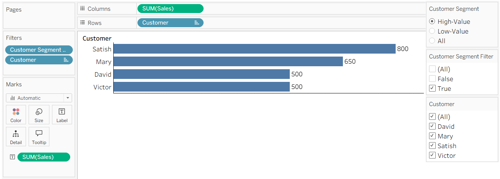
Select High-Value in the Customer Segment parameter.
Tableau will display only customers whose sales are $500 or more.
The Customer filter will update to show those customers, and the bar chart will display their sales.
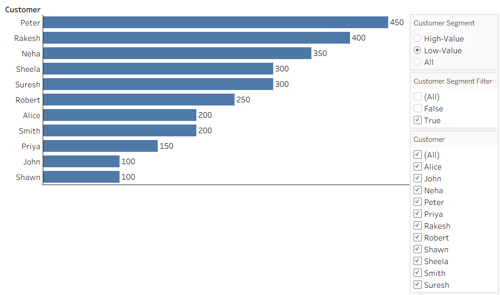
Change the Customer Segment parameter to Low-Value.
The Customer filter will update to display customers whose sales are below $500.
The bar chart will also update to show the corresponding customers and sales amounts.
How Does This Work?
The interaction involves three Tableau features:
Parameter: Customer Segment allows the user to choose the business rule.
Calculated Field: Customer Segment Filter evaluates each record based on the selected rule and returns True or False.
Filter: The calculated field filters the data, while the Customer filter uses Only Relevant Values to display the customer names associated with the remaining records.
Whenever the parameter selection changes, Tableau recalculates the Boolean expression and updates the worksheet.
The Customer filter then displays the relevant customer names.
Conclusion
In this tutorial, we learned how to dynamically change the values available in a Tableau filter based on a parameter selection.
By combining a parameter, a Boolean calculated field, and the Only Relevant Values option, we created an interactive sales analysis worksheet that allows users to switch between different customer segments.
This technique can also be used in dashboards to apply different business rules, such as filtering products by performance, employees by performance categories, or transactions by selected criteria.
Want to Learn More About Tableau?
Ohio Computer Academy offers instructor-led Tableau training with hands-on exercises covering data connections, calculations, parameters, filters, visualizations, and interactive dashboards.
Explore our Tableau training programs to develop practical data visualization skills through live online or in-person training in Dublin, Ohio.

Chandraish Sinha is the Founder and President of Ohio Computer Academy, a leading institution committed to delivering high-quality IT education. With a passion for teaching and a belief in his company’s mission—Inspire, Educate & Evolve—Chandraish brings over 25 years of experience in the Information Technology industry.
Explore more of his work on his Amazon Author Profile.


Post a Comment