
The Cycle Fields option in Tableau is available under the Analysis menu. It allows users to automatically rearrange fields in a visualization without manually dragging and repositioning them.
In this tutorial, we will learn how to use Cycle Fields in Tableau Desktop to explore data from different perspectives.
What is the Cycle Fields option?
Cycle Fields is a Tableau feature that allows users to rotate dimensions between positions in a visualization, such as Rows, Columns, and Color. This makes it easier to explore different views of the same data without manually rearranging fields or creating separate charts.
Note: Cycle Fields is primarily used while creating or editing visualizations in Tableau Desktop. It is not an interactive option available to users viewing a published dashboard on Tableau Server.
Using Cycle Fields in Tableau
To explain this concept, I will connect to Sample-Superstore.xls. If you are new to Tableau, learn how to connect to Excel data source.
Create a bar chart by placing Sales on Columns, Category and Region on Rows.
Place Segment on Color and finally Sales on Text (under Marks) to show the numbers on the bar as shown below:
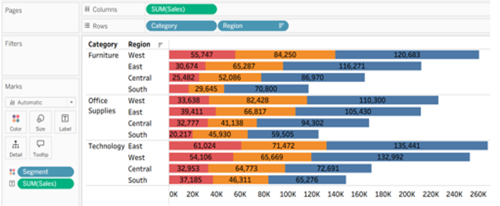
The above chart displays Sales by Category, Region and Segment. Notice the placement of the dimensions Category, Region and Segment.
Now, navigate to Analysis menu and from the bottom, select Cycle Fields ( The second last option). As we make this selection, notice how the placement of fields change as shown below:
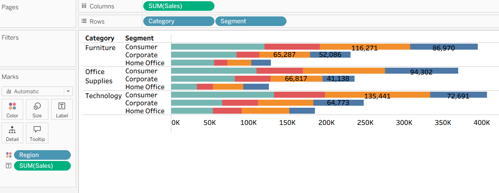
Notice that the colors of the bars have also changed. This is because Tableau has moved Region to the Color shelf, replacing Segment. The chart now uses different colors to represent regions instead of customer segments.
The Cycle Fields feature automatically changes the arrangement of dimensions in the visualization, allowing us to analyze the same sales data from different perspectives.
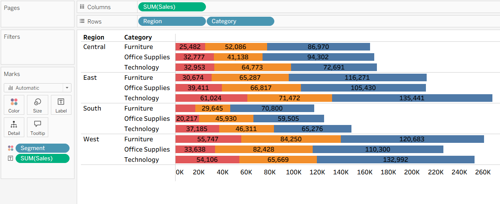
Go to Analysis menu and select the Cycle Fields option again, this time you would notice dimension grouping or the order of dimensions on rows have changed and also Segment moved to colour as shown below:
Use the Cycle Fields option again and this time you would notice Region and Segment are on rows and Category has come on Color as shown below:
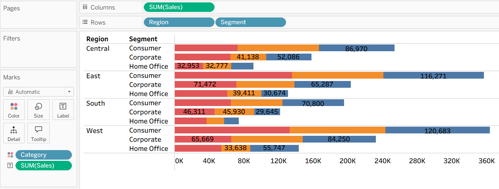
The advantage of using the Cycle Fields option in Tableau is that it automatically rearranges the fields in a visualization, allowing users to explore different views of the same data without manually repositioning fields or creating separate charts.
Want to Learn More About Tableau?
Build your Tableau skills with hands-on, instructor-led training at Ohio Computer Academy. Our Tableau courses cover data connections, calculations, filters, parameters, visualizations, and interactive dashboards.
We offer live online training and in-person classes in Dublin, Ohio.
Explore Our Tableau Training Courses
For additional learning and practical examples, check out the book Dashboarding with Tableau.

Chandraish Sinha is the Founder and President of Ohio Computer Academy, a leading institution committed to delivering high-quality IT education. With a passion for teaching and a belief in his company’s mission—Inspire, Educate & Evolve—Chandraish brings over 25 years of experience in the Information Technology industry.
Explore more of his work on his Amazon Author Profile.


Post a Comment